Rule Editor
The rule editor screen is used to develop and test BRE script
The rule editor is an editor that is embedded into the web application of Vertex. The editor can be used to create and debug scripts. There is an interactive debugger availible straight from the webpage, that can be used to step through the details of the script, showing the local variables on every step to see if they contain the values that the user is expecting from them.
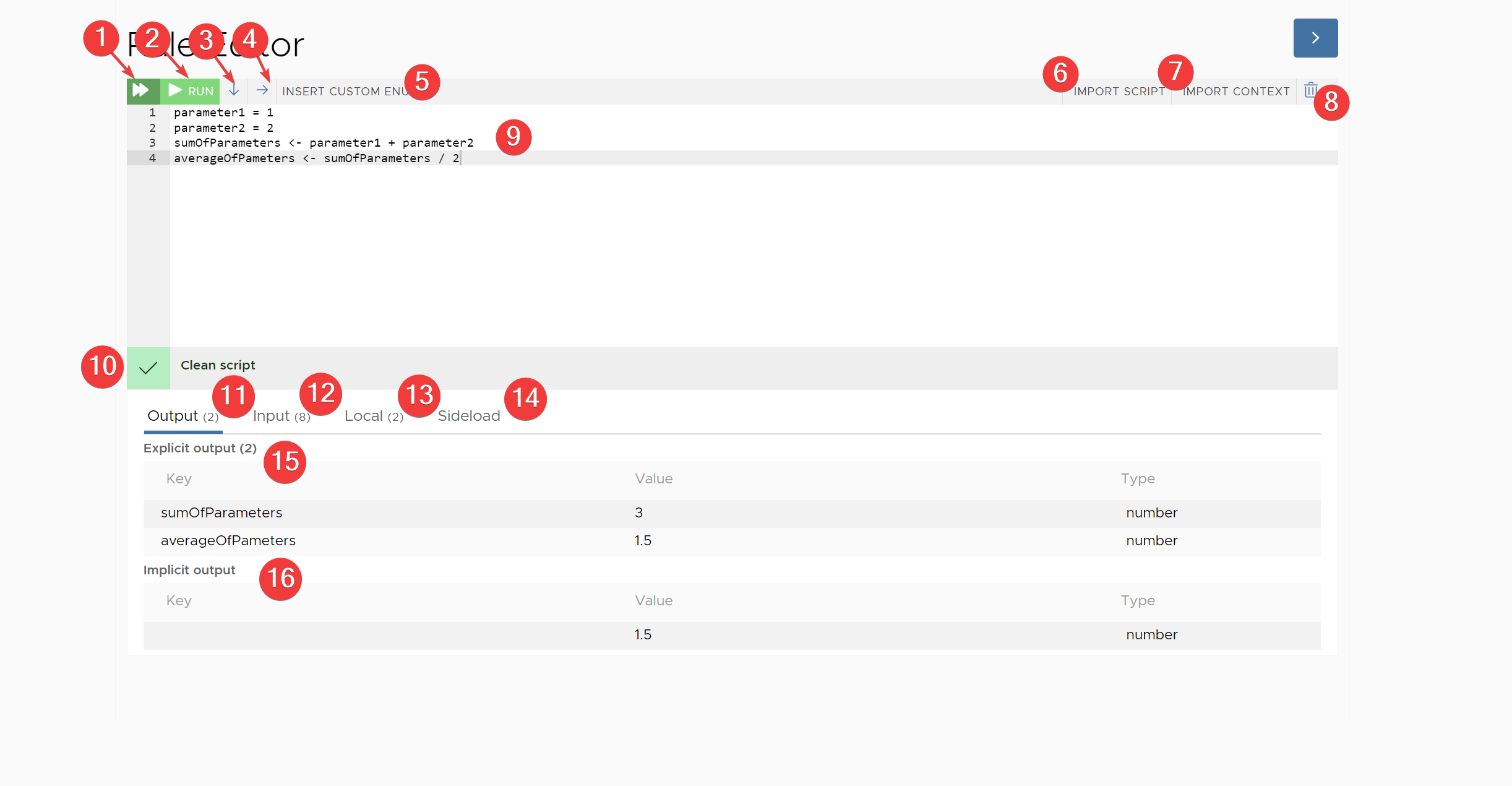
- Provides a fast run option, this will run the script to completion and will not return any intermediate results. This is the fastest option if you want to see the result of the script.
- This will run the script in the front-end but it will provide intermediate updates. This means the row that is currently running will be highlighted as the script is running and the different channels of the rules context (see 11, 12, 13, 14) will be updated.
- This wil halt the script at every new line that the script is executing. This gives the user the opportunity to inspect the different channels of the rules context before advancing to the next script row.
- This will halt the script at every new operation that the script is executing. This means that it will halt multiple times a row and will show an intermediate result after every small operation that has been executed in the script run. This is very slow debugging but can be helpful to debug strange behaviour that happens on a single line of script.
- This will open a small popup as an input helper to select the custom enum and its value to be used in the script. Because the custom enum is tricky to write by hand, because the script expect the id of the custom enum and the id of the custom enum component, it is less error prone to use the input helper.
- Can be used to import a script, that is generated by the system for specific use cases (like a pricing calculation) into the editor.
- Can be used to import a specific context into the input channel (see 12) to get a context of a specific entity into the rules context of the editor.
- This will clear all channels of the rules context in the editor and will start with a new fresh and empty rules context
- This is the actual scripting area where scripts can be written
- After the user stops writing the system will validate the script and verify if the syntaxt of the script is correct. If the syntax is correct is will be a green check. If the syntax is wrong it will show a syntax error:

- Output channel: the output channel is split into 2 sections:
- Explicit output section (marked with 15): all values assigned with the ‘<-’ operator will be found in the explicit output of the rules context.
- Implicit output section (marked with 16): the result of the final line of script will be returned as the implicit output of the script. This can be usefull in places where a small rule is sufficient to write a small piece of logic, for example
inputPricing.totalValue < 100000as a small rule to determine if a pricing can activate automatically or needs a human validation before the pricing can be activated
- Input channel: the input channel will show all inputs that have been loaded by the import context button (marked by 7).
- Local channel: the local channel shows all variables that have been assigned using the ‘=’ operator
- Sideload channel: all provided sideload variables are shown in the sideload part of the rules context